How to send email securely with Thunderbird, Enigmail and Gnupg
Introduction
Passwords and other sensitive information sent via email should always be securely encrypted. One way to do this is with freely available programs you can download.
You’ll need to download the Thunderbird email client from
http://www.mozilla.com/thunderbird/
You’ll also need to download an extension for Thunderbird called Enigmail at
http://www.mozilla-enigmail.org
You should now have 3 files,
Thunderbird Setup 1.5.exe
enigmail-0.94.0-tb15-win32.xpi
gnupg-w32cli-1.4.2.2.exe
NOTE: If you’re not going to use Thunderbird exclusively for all your mail, it will probably be easiest if you create a new email account to use for secure emails.
If you do want to use the same email account with Thunderbird and another email program (Outlook Express) you might have to change your settings for deleting read mail from the server, so that one program doesn’t delete messages before the other can download them.
Setting up Thunderbird and Enigmail
Click on the file ‘Thunderbird Setup 1.5.exe’ to start installing Thunderbird.
Use the default settings it suggests and click all the next buttons then click “Finish” button to start Thunderbird.
When it first starts it will ask if you want to import your settings from another email program, select No and click next.
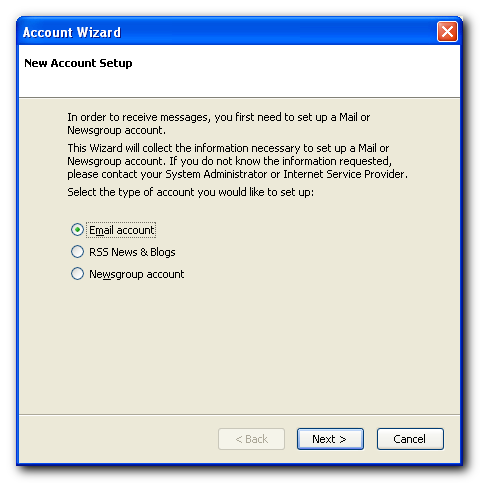
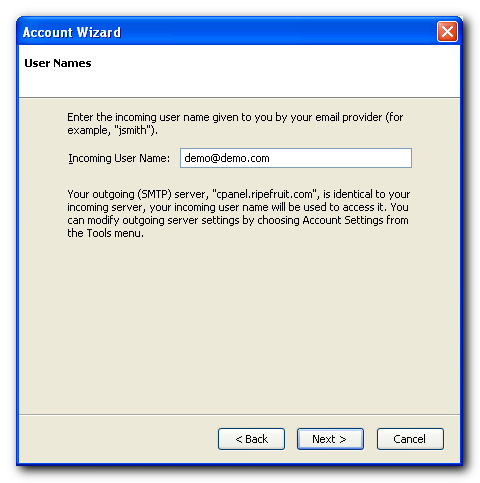
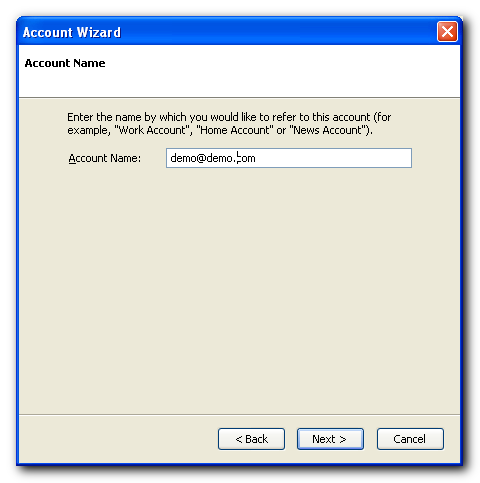
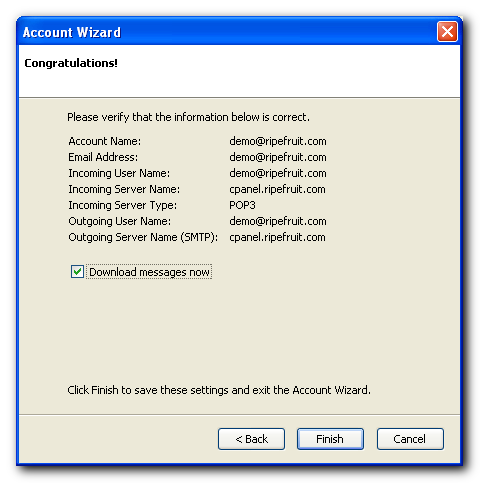
It will then ask you to create an email account.
Use the screens below as a guide.


You’ll then see the main screen for Thunderbird.

From the menu select Tools > Extentions, and you’ll see a window like below
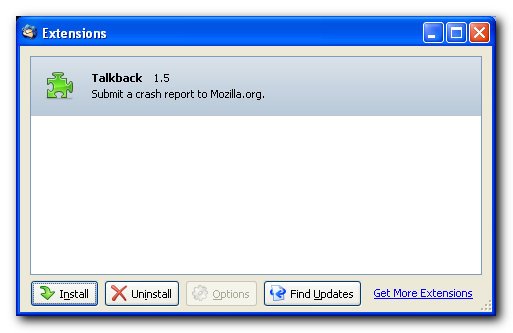
click on Install then select the Enigmail file you downloaded (enigmail-0.94.0-tb15-win32.xpi) and click “Install Now”. You should now see the Enigmail extention listed. The installation will be completed when Thunderbird is restarted.

You can now close the Extentions window and close Thunderbird.
Installing gnupg
To install gnupg, click on the gnupg setup file you downloaded (gnupg-w32cli-1.4.2.2.exe) and use the default settings it suggests except for the location to install it to. For the Install Location enter C:gnupg
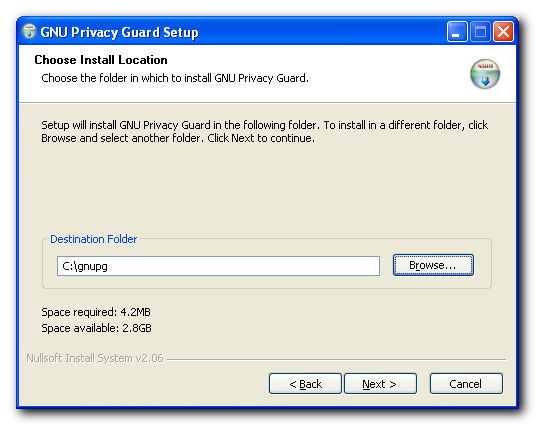
and click next untill you see the Finish button.
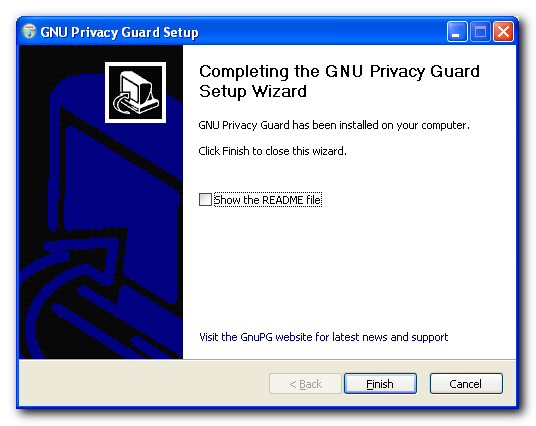
Click Finish to complete the install of gnupg.
Creating keys to use for encrypting mail
You’ll need to create a pair of private and public keys to use for encrypting mail.
Start Thunderbird again and from the menu select OpenGPG > Key Management.
The OpenPGP Setup Wizard will open the first time you select Key Management,

don’t use the Setup Wizard (above), close it instead by hitting Cancel and the Key Manager window (below) will open
From the menu go to Generate > New Key Pair
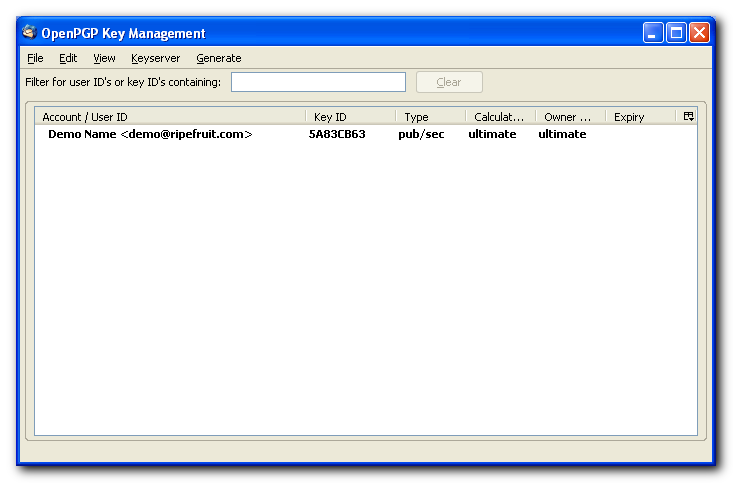
and you should see a “Generate OpenGPG Key” window like below
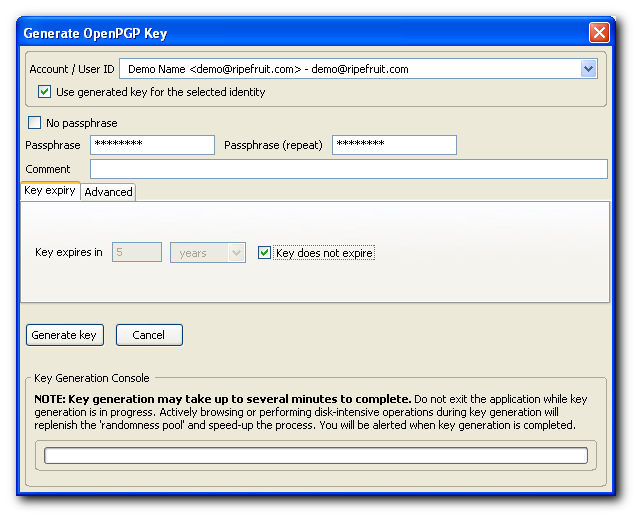
Enter a passphrase (a password) and check the box for “Key does not expire”,
then go to the advanced tab

and change the key size to 4096. Then click “Generate Key”, you’ll see

click Yes to generate the keys.
When the keys are generated you’ll be asked if you want to create a revocation certificate. Select No.

You should now be able to send and recieve encrytped mail.
To test it out, click on the Write button to compose a new message.

In the To: field enter the email address that you created the key for above.

and click on the OpenGPG button and check all the boxes.

Then click OK and send the message.
When you check your email and view the message you should be asked to enter your passphrase to decrypt the message.
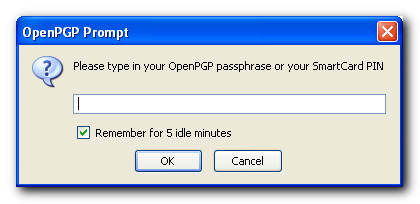
If you can read the message, then your setup should be completed.
Sending your public keys to others
You’ll probably want other people to be able to send you enctrypted information too.
To do that you’ll need to send them your public key.
Open the Key Manager, from the menu go to OpenGPG > Key Management.
In the Key manager, click on the key you want to send, and from the menu go to File > Send Public Keys by Email. It will start to compose a new message with your public key attached which you can send to whoever wants to send you secure mail. It will allow them to send you encrypted messages that can only be read using your private key.
Importing public keys that others send to you
To send secure mail to someone else you’ll need to import their public key.
To import someone’s public key that’s been sent to you as an attachment, right click on the attachment and select “Import OpenPGP Key”. Then whenever you compose a message to them you’ll have the option of using OpenGPG to encrypt the message with their public key.